Guide 1
How to use a teleprompter on a Mac for video calls
Short answer
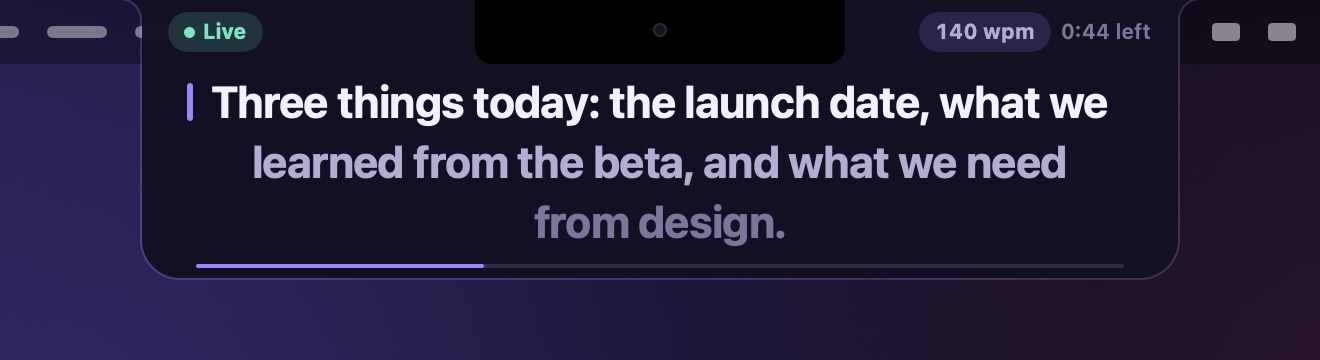
The free way: paste your notes into a Stickies note, choose Window › Float on Top, make it a few lines high and drag it to the top centre of the screen, right under the camera. A notch teleprompter does the same job more tidily: the text sits in the notch itself, a few lines at a time, and moves on by itself or as you speak.
Updated · steps checked on macOS 27.2.1 on a MacBook Pro with a notch
Why your notes belong under the camera
On a call, people see you looking wherever your eyes are. Notes in a window at the bottom of the screen or on a second display pull your eyes away from the camera, and it shows: you look down, or off to the side. The closer the text is to the lens, the less your eyes have to move away from it.
On a MacBook, the camera is in the middle of the top edge of the screen. So the best place for notes is the strip right under it.
The free way: a floating Stickies note
Stickies comes with every Mac, and one menu item makes it useful here: Float on Top keeps the note above every other window, including the call.
- Open Stickies from the Applications folder and paste your notes into a note.
- Choose Font › Bigger a few times, until you can read it from where you sit.
- Choose Window › Float on Top, so the note stays above the call window.
- Make the note a few lines high and drag it to the top centre of the screen, right under the camera.
- Scroll the note by hand during the call.
It works, with limits: you scroll by hand while you talk, the note can’t go higher than the menu bar, so it sits a little below the camera, and it covers the top of the call window.
With a notch teleprompter
TopCue puts the script in the notch itself: a soft card hangs from the camera housing and shows two to four lines, the line you’re on in bold. Beside the notch it shows whether it’s live and the pace. It moves in one of three ways: Voice follows your speech with recognition that runs on the Mac, Auto keeps a steady pace, and Manual moves when you scroll over it.
- Open TopCue. In the editor, write or paste your script, or click Import… for a .txt, .md, .rtf or .docx file.
- Pick Voice (follows your speech), Auto (a steady pace you set in words per minute) or Manual (you scroll).
- Click Go live, or press ⌃⌥Space from any app. The prompter card opens from the notch and, after a 3-2-1 countdown, starts to move.
- ⌃⌥Space pauses and resumes, ⌃⌥↑ and ⌃⌥↓ change the Auto pace, ⌃⌥← goes back a line. Hovering over the prompter holds Auto until you move away.
When you share your screen
If you share your whole screen, assume people can see anything on it, notes included. Share a single window instead: most call apps let you pick one, and the rest of your screen, the prompter included, stays out of the picture.
Tips for reading on a call
- Fewer lines, bigger text. Two or three lines you can read at a glance beat a page you have to search.
- A narrower prompter means less side-to-side eye movement. TopCue’s width is in Settings.
- Set Auto a little slower than feels natural; you can speed it up with ⌃⌥↑ without stopping.
- Write the way you talk. Short sentences, and a cue like
[pause]where you want a beat: TopCue shows text in square brackets but doesn’t expect you to say it. - Look up at the lens for the moments that matter: the hello, a question, the goodbye.
Questions
Will the other people see my script?
Not in your video: the camera sees you, not your screen. They see it only if you share a screen or a window that shows it.
Does TopCue work with Zoom, Microsoft Teams or Google Meet?
TopCue doesn’t connect to any call app. It’s a window at the top of your screen, so it sits alongside any of them, in their own apps or in a browser.
Can Voice follow me while I’m on a call?
Voice listens through the Mac’s microphone while the call app does too. With headphones it hears only you; without them it may also hear the call, but it only moves when what it hears matches the words of your script.
I use an external display with a camera on top. Does that work?
Yes. Choose that display in Settings › Prompter › Display. On a screen without a notch, the prompter hangs from the top centre, just under the menu bar, so it’s still close to a camera mounted on top.
More guides